Importing tags
Introduction
Some protocols allow you to import tags stored in a comma separated file (.csv or other formats).
Importing is a two step process:
- Import of the tag definition into a dictionary
- Import tags from the dictionary to the project
WARNING: Special characters in tag names, such as "&" character, that can cause communication errors will be substituted with the underscore "_" character when imported. See "Limitations in Unicode support"
Importing tags
To import tags from an external file:
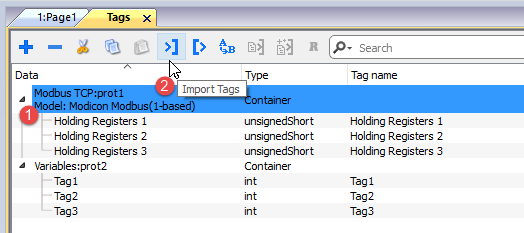
- In ProjectView, Tags select the protocol from the filter list.
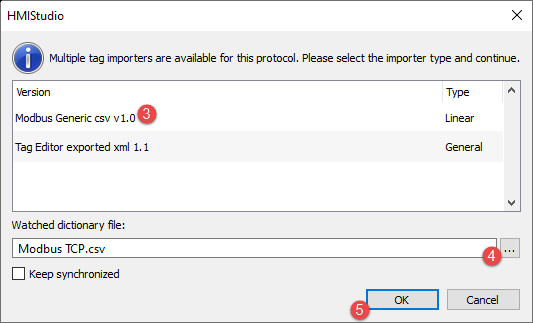
- Click the Import Tags button: the dialog to choose the importer type appears. The list of the supported importers is depended from the selected protocol.
- Select the importer type to use
- Select the dictionary file
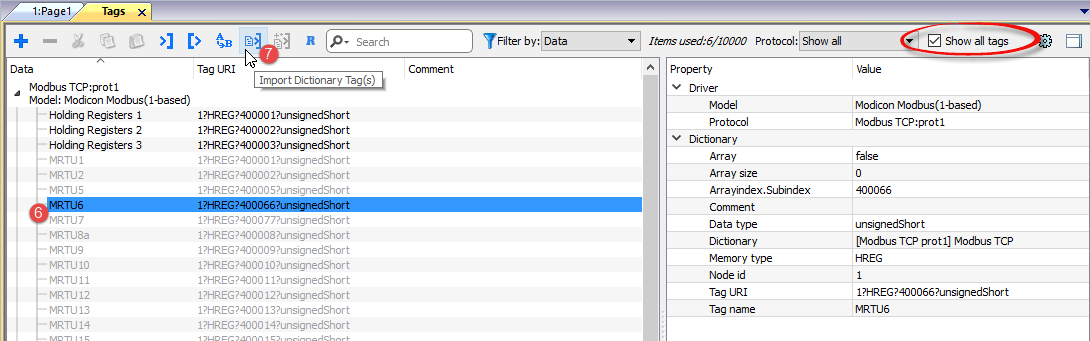
- Press OK to attach the dictionary file to project file. The tags available within the Dictionary but not imported into the project are gray and are visible only when the "Show all tags" check box is selected.
- To import tags, select one or more tags or a node (hierarchical view only)
- Click the Import tag button: tags are imported to the project and listed in black color.
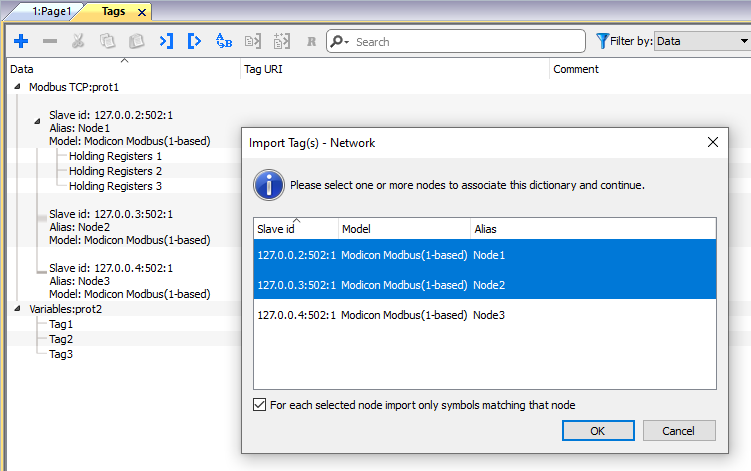
When the project is configured to use a protocol network you must also select the protocol node where tags are to be imported. You can import the same tags on multiple protocols.
For each selected node import only symbols matching that node
When the tags file contains the node information, you can choose to use the information to filter the tags and import only those matching with the selected nodes.
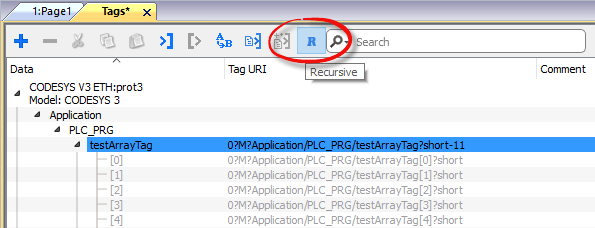
Recursive
Recursive is a toggle button. When selected, when an array tag is imported even all array elements are imported into separate tags.
Updating the imported tags
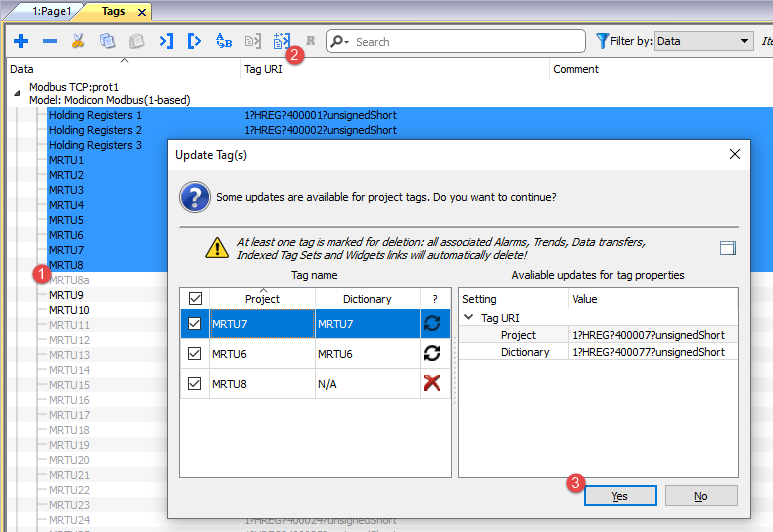
To check the dictionary file and update the imported tags:
- Select the tags that you want to check
- If some change is found the update icon will be enabled, click the icon and the "Update Tag(s)" dialog with the list of found differences is showed
- Unchecked the tags that you do not want yo update and click OK to confirm

|
These tags need to be updated. The list of differences between project and dictionary is displayed. |

|
These tags are no longer available in the dictionary. If updated, these tags will be removed from the project. |
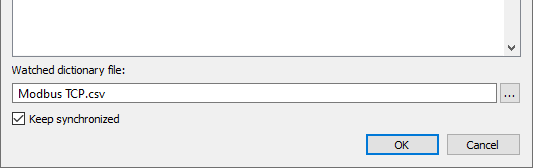
Keep Synchronized
Check the "Keep Synchronized" check box if you want that JMobile Studio checks and update the tags from file dictionary automatically without user intervention.
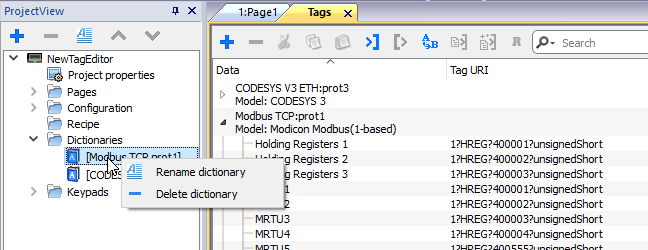
Dictionaries
Path: ProjectView > Dictionaries
A dictionary is a list of tags imported in the Tag Editor for a specific protocol.
To remove a dictionary, right-click the dictionary name.